Hey Mario,
I used an open source software called Inkscape. It does vectoring. I scanned
and crop my actual signature then vectored it into a pictorial image of my
signature, now I can just insert an actual image of my signature as if I signed
the screen with a pen. The website is.

Inkscape.org <https://inkscape.org/>

You will definitely need sighted assistance.

Here are the instructions I used. The website probably has better or clearer
instructions.

How do we add a signature? Well, we could sign our name on a white piece of
paper, scan it and just plant that image in Word, right? Not quite. When you
scan an image (or take a photo with your iPhone for that matter) you get a JPEG
image, and JPEG images do not support transparency.

Here's what a scanned signature looks like right off the scanner:


<http://2.bp.blogspot.com/-gRauebF2P8k/TwCFFz5ss_I/AAAAAAABPAM/eyJEdeBAx-o/s1600/sig1.jpg>


First thing you'll notice is it's big. If you want your signature to look legit
when the document is printed you have to scan it at at least 300
<http://en.wikipedia.org/wiki/Dots_per_inch> DPI. Your computer screen,
however, has a resolution of about 75 DPI normally. So if you add this photo to
Word you'll have to re-size it down. The end result is something that looks
like this when printed:


<http://4.bp.blogspot.com/-jpZdNaNo_xw/TwCFTQGhR2I/AAAAAAABPAY/FqDMzCkS32w/s1600/jpg+in+word.jpg>


Terrible.

First of all, the white background of the signature photo is opaque. As a
result the image hides the "Signature" text and the line we're supposed to sign
on. We want to somehow make the white areas transparent, so that when we plant
the signature onto the page it looks as if it was drawn on by hand, not
plastered on with a computer. This can be done with image editing software,
such as Paint.NET (free), if you know what you're doing. The resulting image
must be saved in a more appropriate image format - one that supports
transparency. Best is PNG.

But even that's not enough. The end result, when printed, still looks terribly
fake. Here's a close-up version to illustrate:


<http://1.bp.blogspot.com/-ZFAkoaVzWkg/TwCFytvrdCI/AAAAAAABPAk/eFSKYcDGTNM/s1600/upclose.jpg>


See how pixelated it looks? When you print this on a piece of paper you
definitely see the difference. Why is this happening? Didn't we take a hi-res
scan of the signature?

Why? Because Word is dumb. When you scan an image in high resolution (e.g. 300
or DPI, same as a good printer) the image you get on your computer is big. When
you then resize the image in Word to fit the signature space, Word just prints
the picture as it appears on screen (i.e. in 75 DPI). It's not smart enough to
say "this picture is scaled down, but I do have the original high-resolution at
hand, so I can send it to the printer at 300 DPI".

Also, what if we want to print at 600 DPI, but our scanned image is just in 300
DPI? Ideally we'd want a  <http://en.wikipedia.org/wiki/Vector_graphics> vector
image of our signature, not a  <http://en.wikipedia.org/wiki/Raster_graphics>
raster image. Vector graphics nowadays is usually saved in the popular (and
open)  <http://en.wikipedia.org/wiki/Scalable_Vector_Graphics> SVG format. And
you can find  <http://vectormagic.com/home> services online that will try to
convert a raster image (e.g. jpg) to SVG. Only one problem with this: Word
can't handle SVG. So there's one more hoop to jump through.

Here's what you need to do to take a scanned image of a signature and convert
it to something you can actually add to Word. You need just one application -
it's called  <http://inkscape.org/> Inkscape and it's a totally free vector
graphics application.


1.      Take a white A4 paper and put your signature on it using a nice, thick
pen.
2.      Scan it at 300 DPI (grey-scale is fine, too).
3.      Crop out everything but the signature. This can usually be done in the
scanner program itself if you do a pre-scan. But you can also do it with MS
Paint.
4.      Save it as JPG.
5.      Open Inkscape.
6.      Drag and drop your scanned JPG into Inkscape.
7.      Select the image in Inkscape and choose Path -> Trace Bitmap from the
menu.
8.      Use "Brightness Cutoff" with a high threshold (over 0.9) and press Ok.
9.      It will create a vector version of the signature and place it directly
above the image. Drag it away to see the difference between the two.
10.     Feel free to play with the threshold until you get a good reproduction
of the original image.
11.     Now select the original image and delete it (DEL).
12.     Select the good vector version and do File -> Document Properties ->
Fit page to selection.
13.     Now save as EMF.
14.     You can now drag and drop this EMF into Word. Make sure the Text Wrap
property of the image in Word is set to "In Front of Text" and then just place
it over the signature space.

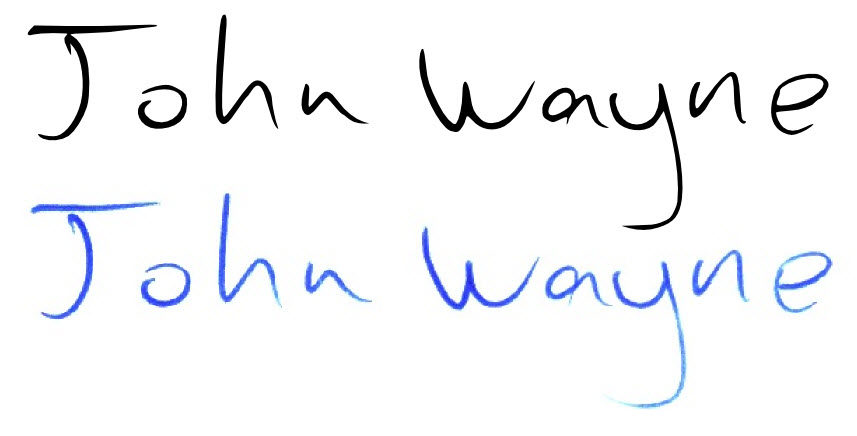
Here's a close-up of the raster vs. vector images side by side in Inkscape:


<http://3.bp.blogspot.com/-5G-z5id_vwA/TwCDW5ABJCI/AAAAAAABO_o/1WvRKLHzOuI/s1600/sign+side+by+side.jpg>


Here's just one letter scaled way up, just so you see how good the vector
version is:


<http://3.bp.blogspot.com/-sL4imqsJY1s/TwCDlGWnWvI/AAAAAAABO_0/JLvZpmx3FrU/s1600/just+n.jpg>


And here's what it looks like in Word:


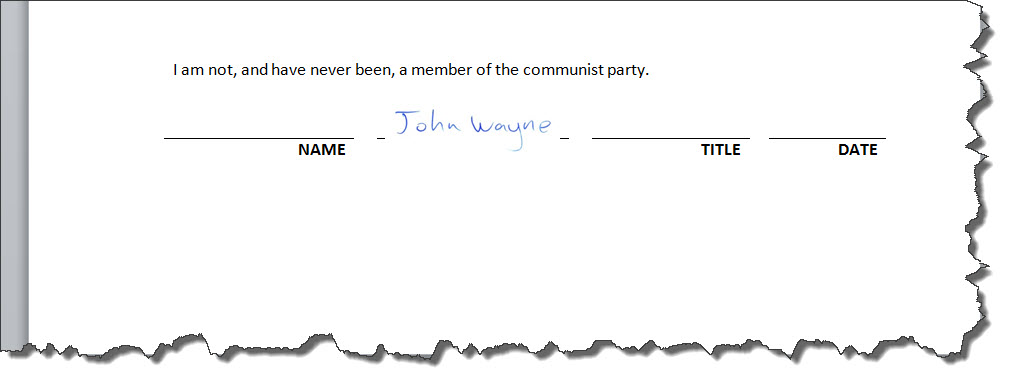
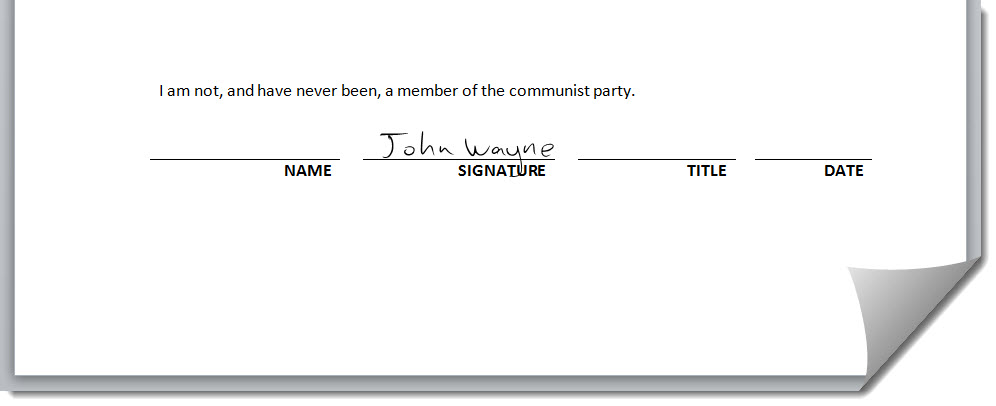
<http://1.bp.blogspot.com/-NwO-nkc-xpo/TwCEttuko1I/AAAAAAABPAA/CcT7qX4c5DA/s1600/inword.jpg>


Keep that EMF file at hand. No more printing, faxing and scanning.


-----Original Message-----
From: Mario [mailto:[email protected]]
Sent: Tuesday, February 2, 2016 4:46 PM
To: [email protected]
Subject: signatures in pdf form


I have a pdf form that needs to be filled in, including signatures. I am using
acrobat reader dc and I am able to fillin name, address, city, state, zip, etc,
but what about signatures? how can this be done?


I haven't got any idea, except to have my signature digitally scanned or
photoed, cropped, and inserted, but have no idea as to successfully do this.
help!