This should do it for you:
HOWTO - Install Ubuntu on the Asus Eee PC
http://www.internet-tools.co.uk/blog/index.php/2007/11/26/installing-ubuntu-710-gutsey-gibbon-on-my-asus-eee-pc/
It reads:
Well I went and got myself an Asus Eee PC the other day. What a
fantastic piece of kit… but I have to say I didn’t like the OS much.
You either have a ‘fisher price’ Xandros Linux desktop, or a Xandros
KDE based one… Personally (and I am new to linux) I prefer Ubuntu’s
Gnome-based layout.
Now in theory, this shouldn’t be too hard, but in order to make sure
that this all works properly, I spent a great deal of time researching
the process at EeeUser.com and various other sites.
This is my ‘How to’
- Reboot your Eee PC and ensure that the boot sequence is set to
ATAPI CD Rom as the first choice.
- Plug in a USB CD Caddy and insert your Ubuntu 7.10 Gutsy Gibbon
Live CD (Download Here)
- Once booted, click on Applications, Terminal and type gconf-editor
- Browse to apps/compiz/plugins/move/allscreens/options
and uncheck constrain_y (Full details Here) - This allows you to move any window up
beyond the height of the screen, which is very much needed during this
install.
- Double Click on the “Install” Icon on the Desktop. Any time a
window doesn’t fit, hold down the Alt key and drag the window off the
top of the screen so you can see the buttons.
- Go through all the normal bits until you get to the Partitioning.
Select manual and delete all the existing partitions. Create one
partition of 4001Mb that is EXT2 and has a mount point of “/” - Ignore
any “swap partition” warnings.
- Complete Install (answering any obvious questions accordingly)
- Reboot (after removing the CD)
- Redo Step 4 again (it gets lost in the install)
- Acknowledge the Athos “Restricted Driver” message
- Minimise Disk Writes (All obtained from Eeeuser.com)
by doing the following:-
- Adding the following to /etc/fstab tmpfs
/var/log tmpfs defaults,noatime 0 0
- Repeat for /tmp,
/var/lock,
/var/run
and /var/tmp
- Set defaults,noatime 0 2 on the
main ext2 partition (See HERE for more details) to prevent excessive wear
and tear on your SSD
- If you ignored me and added a swap partition as well, then
edit the /etc/sysctl.conf and add a line at the end that says vm.swappiness=0 this will tell the OS to use
RAM in preference to Swap files.
- Go into Add/Remove, and remove the pointless applications
that are
taking up room on your little 4Gb SSD… I removed the following:-
-
- Most of the games (Really…How often are you actually going to
play these?)
- F-spot Photo Manager (I user Flikr, so not needed)
- OnBoard (on-screen keyboard… not needed as we have one!)
- Orca (I can see just fine thank you…)
- Xsane (Nope… no scanners or faxes plugged into my Eee)
- Get your GMAIL all set up (Samsung tips here apply equally well… http://www.internet-tools.co.uk/blog/index.php?s=gmail)
Ok. So we have a working Eee PC running Ubuntu, but there are a few
things ‘Broken’…. Battery Indicator, Wireless Lan, Webcam, Power
Buttons, Lid sensor, Skype…..
Go the the Eeeuser.com site HERE
to fix these issues (far to long to cut’n'paste here) and pn Samiux’s
Blog HERE
But things I did fix from the Eeeuser site were:-
- Wireless network (via ndiswrapper method)
- Suspend/Resume/Power Down issues
- Webcam support (you have to enable it in the BIOS for Ubuntu to
see it - it will reboot twice once enabled)
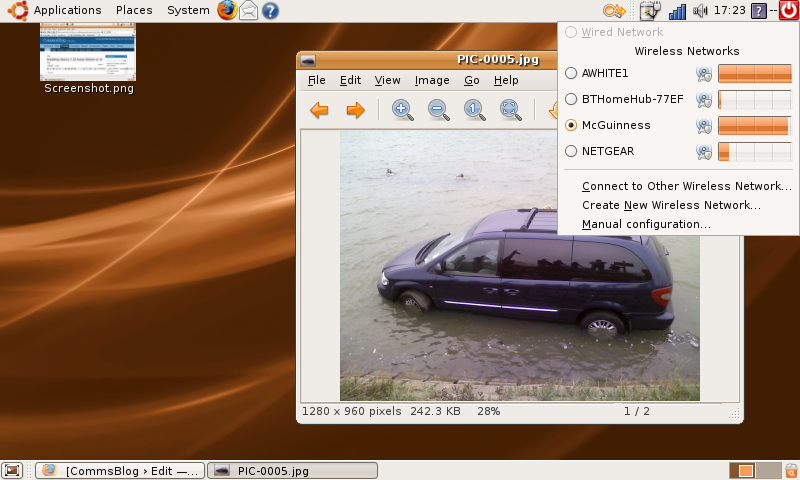
Click on the Pic to see a bigger
version
The next thing was to make sure
that everything took up as little space as possible. These were the
steps I took:-
- Installed the ‘Littlefox’ theme into FireFox (takes up much less
screen real-estate)
- Went into Appearance Preferences and set:-
- All the fonts to 8pt
- Icons to “Icon Only” (no text)
- Adjusted mouse sensitivity (wasn’t detecting my touchpad-taps
very well)
- Set both status bars to 19 pixels in height
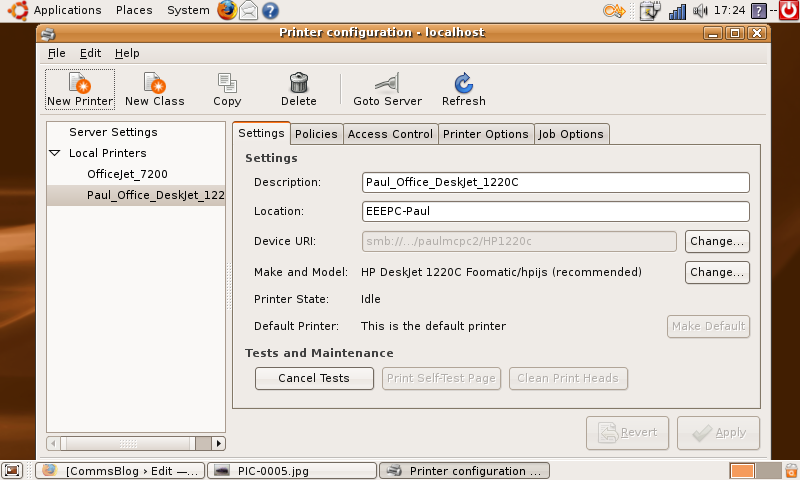
- Added my networked HP printer (I use a wireless gateway adapter
connected to the Ethernet port on the OfficeJet)
Then I added some goodies…
- Enabled all the repositories in System, Administration, Software
Sources
- Updated everything by going into System, Administration, Update
Manager
- Installed all the BlueTooth stuff (so I can beam from my Samsung
to the Eee PC)
- Installed Camorama (Web Cam Capture and Test App)
- Installed v2 of Skype (it has webcam support under linux)
And thats it…. all working, and I am in fact completing this blog
entry on my Eee PC with Ubuntu!
27th November - NOTE: When installing the ndiswrapper, make sure you
place the ndis folder that you downloaded from the cd/website somewhere
sensible! I deleted the folder (thinking that ndiswrapper would copy
the relevant files somewhere) and spent 2 hours trying to get my
wireless lan working again 
29th November - Added some screenshots of it in action.
30th November - Firstly… sorry if you haven’t been able to view this
blog… Fasthosts cobbled my MySQL server
Secondly… I have had a minor problem (irritating, more than an issue)
where the Eee PC will randomly reboot during the initial boot sequence.
Essentially it gets ’stuck’ about 20% through the first Ubuntu progress
bar, and then reboots just fine. Haven’t sussed what it is yet, but it
only happened after I enabled the Webcam in the BIOS…
luthien wrote:
No,
but there's some information on the blogs and forums at
http://www.eeeuser.com/, according to one of my online mates who's
contemplating doing this. I'll let you know how he gets on! If it works
I may just be tempted to do it myself; I find the restricted repos and
block on uninstalling the pre-installed stuff a bit of a pita
already...I dunno how you'd wipe the read-only partition without
reformatting its whole tiny hdd though.
As for whether it has enough space - well if it can run a cut-down
version of WinXP it must be able to run Ubuntu!
:D
----- Original Message ----- From: "Dave"
<[EMAIL PROTECTED]>
To: <[email protected]>
Sent: Saturday, March 08, 2008 11:32 AM
Subject: [Peterboro] Installing Ubuntu on the Asus eee
Thanks again
for the various replies regarding the problem with moving oversized
panels in Thunderbird. Problem solved.
Does anyone have any experience of installing Ubuntu on one of these
little beasts? I have one on order and would prefer to have the full
Ubuntu functionality, rather than the OS it ships with. I assume I
would have to get an Ubuntu install onto an SD card or a memory stick
and install it from there. Or alternatively, I could plug my external
Seagate USB hard drive in and load from that.
I'm not sure of the exact procedure, or if Ubuntu takes up much more
disk space than the original Asus OS. This might be an issue given that
the Asus only has 4Gb available.
Dave
_______________________________________________
Peterboro mailing list
[email protected]
https://mailman.lug.org.uk/mailman/listinfo/peterboro
_______________________________________________
Peterboro mailing list
[email protected]
https://mailman.lug.org.uk/mailman/listinfo/peterboro