Hey all!

Here are some new mockups. I may be missing some of the latest ideas,
but take a look anyways and let me know what you think:
http://jesseross.com/clients/etoile/ui/concepts/02/

------------------------------------------------------------------------
--

http://jesseross.com/clients/etoile/ui/concepts/02/workspace_100.jpg

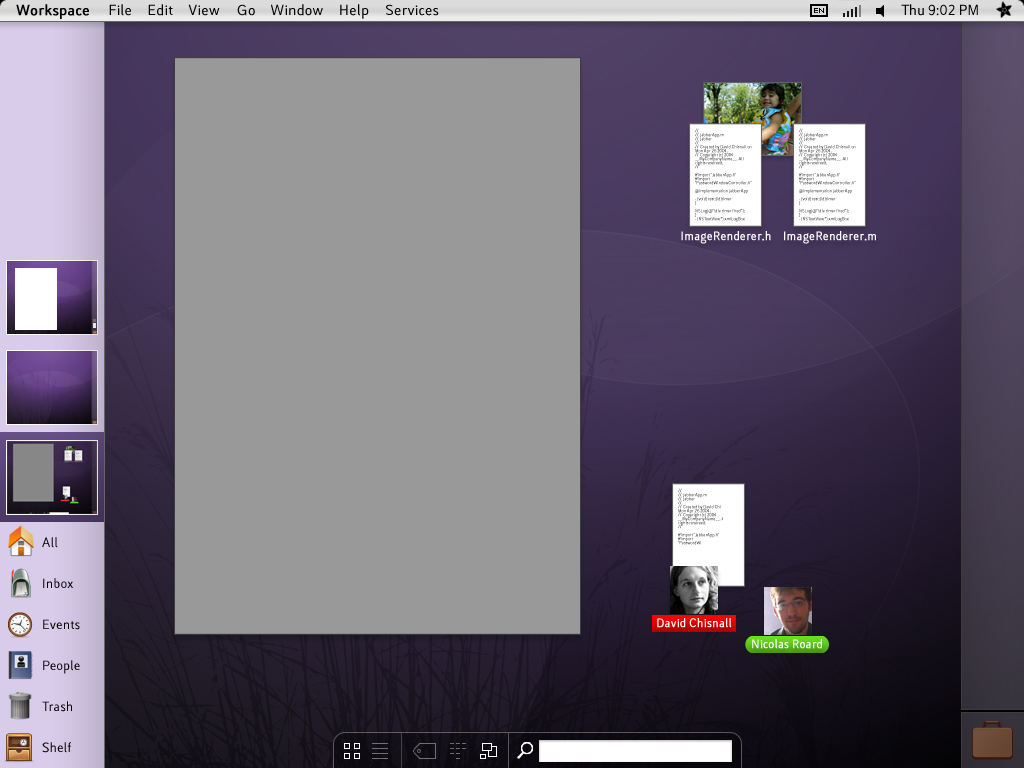
This is the default view when you first start up Etoile. We have the
typical menubar at the top, with the application menu being a corner
hotspot, and the flower menu being the other top corner hot spot. The
flower menu would contain system-related tasks (such as Shut Down,
Log Out, System Preferences, etc).

Along the left we have the side bar. The side bar contains items of
two types: Project Shortcuts and Tag Overlays. The Project Shortcut
section is equivalent to a virtual desktop switcher, and we can add
items to or remove items from this list, as we'll see shortly.
Underneath the Project Shortcut section is the Tag Overlay section.
Default items may include All (which shows all objects on the
system), Inbox (which shows all non-user created items to appear on
the system today), Events (which is a calendar view), People (which
shows all contacts/addresses), Trash (which shows items ready to
delete), and Shelf (which acts as a temporary place-holder for items
to move between projects, or for often-used items). Tag Overlays are
equivalent to smart-folders -- the contents of a tag overlay have all
been tagged in a certain way, or meet certain criteria, causing them
to show up in these folders. Users could remove any of these items,
or create their own Tag Overlays by specifying the smart folder
criteria. Some examples of folders that users might create are: Today
(for all objects that appeared on the system today), To-Do (for items
tagged with a 'todo' tag), or Etoile People (for Person objects
tagged with 'etoile'). Items in the Tag Overlay list can be organized
however the user feels best suits them, thus allowing them to put the
most-frequently accessed item at the bottom hot-corner location.

In the lower right corner is the Project Management Overlay icon,
which I'll discuss now.

------------------------------------------------------------------------
--

http://jesseross.com/clients/etoile/ui/concepts/02/workspace_150.jpg

This shows the result of clicking the Project Management Overlay icon
in the lower right. Clicking this triggers an Overlay view (a semi-
transparent window which shows the current Project underneath). In
this view, the user can see all Projects on their system -- in this
case, the user has 3 Projects: 1 as a sidebar shortcut and 2 in the
overlay.

Along the bottom of every Overlay view is the bottom bar. The bottom
bar contains a search/filter box, and other icons related to viewing
the items within the overlay. In this case, there are only two icons
-- a toggle between Icon view (active) and List view (inactive).

------------------------------------------------------------------------
--

http://jesseross.com/clients/etoile/ui/concepts/02/workspace_200.jpg

The user has now dragged the two Projects in the overlay out to the
sidebar.

------------------------------------------------------------------------
--

http://jesseross.com/clients/etoile/ui/concepts/02/workspace_250.jpg

Here the user has dismissed the overlay by clicking anywhere on it.
Overlays operate very similarly to OS X's Dashboard.

------------------------------------------------------------------------
--

http://jesseross.com/clients/etoile/ui/concepts/02/workspace_300.jpg

The user then decides that they want to work on a different Project,
so they select it from the sidebar. This then automatically switches
to that project. The Project shown here is in Project Overlay view
already. This view is triggered by double clicking anywhere on the
Desktop. Because it is already in that view, that means that the last
time the user used this Project, they had double-clicked on the
Desktop before pulling this Project off the sidebar. The Project
Overlay shows all the non-active documents within the Project, and
also includes a bottom bar. This bottom bar has the same items as the
Project Management Overlay, plus an additional sorting toggle: the
icons include sorting by Tag (inactive), by Type (inactive), or
Manually (active).

------------------------------------------------------------------------
--

http://jesseross.com/clients/etoile/ui/concepts/02/workspace_350.jpg
http://jesseross.com/clients/etoile/ui/concepts/02/workspace_400.jpg

Documents can be opened by double-clicking on them. Visually, this
drops them back behind the Project Overlay. Double-clicking to
activate the document also removes it from the Project Overlay --
objects should have just a single representation per Project.

Notice that anytime the user modifies the Project, either by
activating a document or by working on a document, the sidebar
representation of that Project changes as well.

------------------------------------------------------------------------
--

http://jesseross.com/clients/etoile/ui/concepts/02/workspace_450.jpg

Like other overlays, the Project Overlay is dismissed by clicking
anywhere on the overlay itself.

------------------------------------------------------------------------
--

http://jesseross.com/clients/etoile/ui/concepts/02/workspace_500.jpg

Here the user has decided to minimize one of the active documents, in
this case the photo. This sends the document to the document bar, to
the right.

------------------------------------------------------------------------
--

http://jesseross.com/clients/etoile/ui/concepts/02/workspace_550.jpg

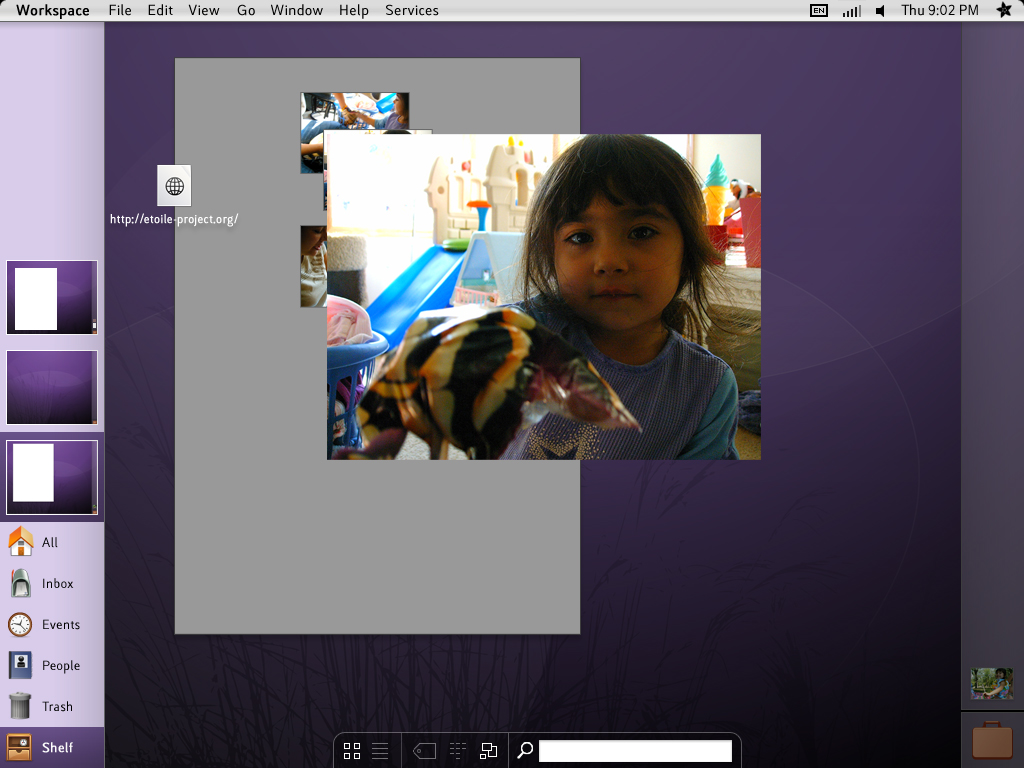
The user then decides to trigger the Shelf Tag Overlay because they
want to drag something out of it into their current project. Notice
that, at any given moment, the user will have a Project highlighted
in the sidebar, and may also have a Tag Overlay item highlighted.
Also notice that triggering a Tag Overlay, or the Project Management
Overlay, does not change the Project representation in the sidebar.
This is because triggering these overlays (unlike triggering the
Project overlay) does not change the Project state itself.

------------------------------------------------------------------------
--

http://jesseross.com/clients/etoile/ui/concepts/02/workspace_600.jpg
http://jesseross.com/clients/etoile/ui/concepts/02/workspace_650.jpg
http://jesseross.com/clients/etoile/ui/concepts/02/workspace_700.jpg

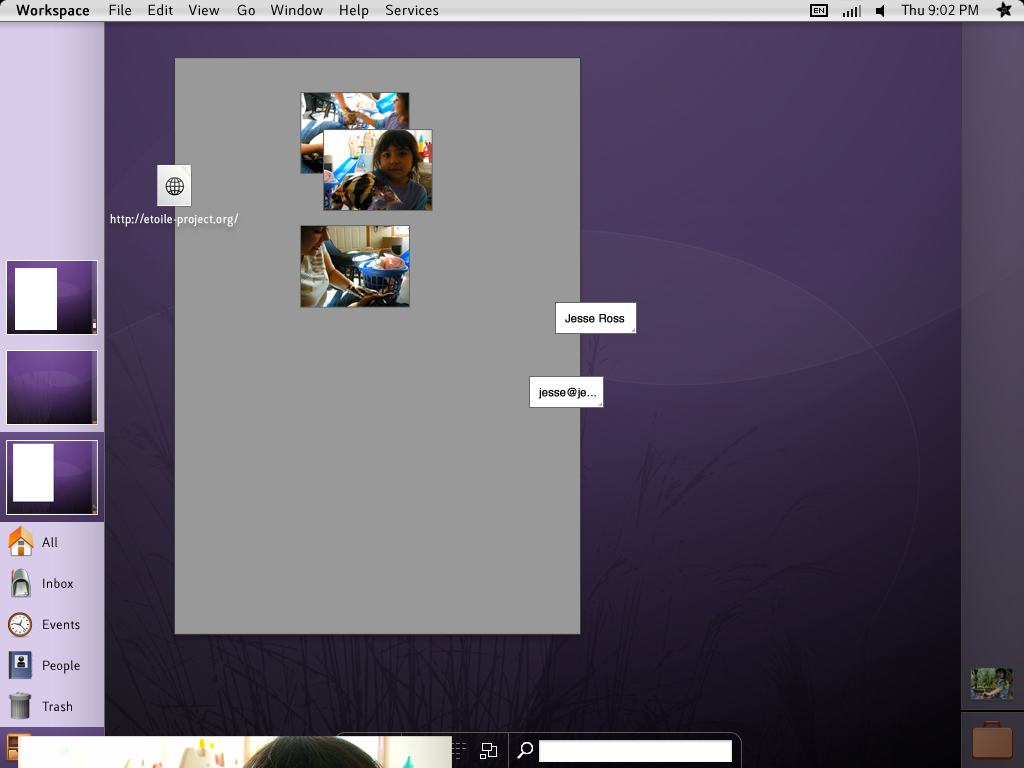
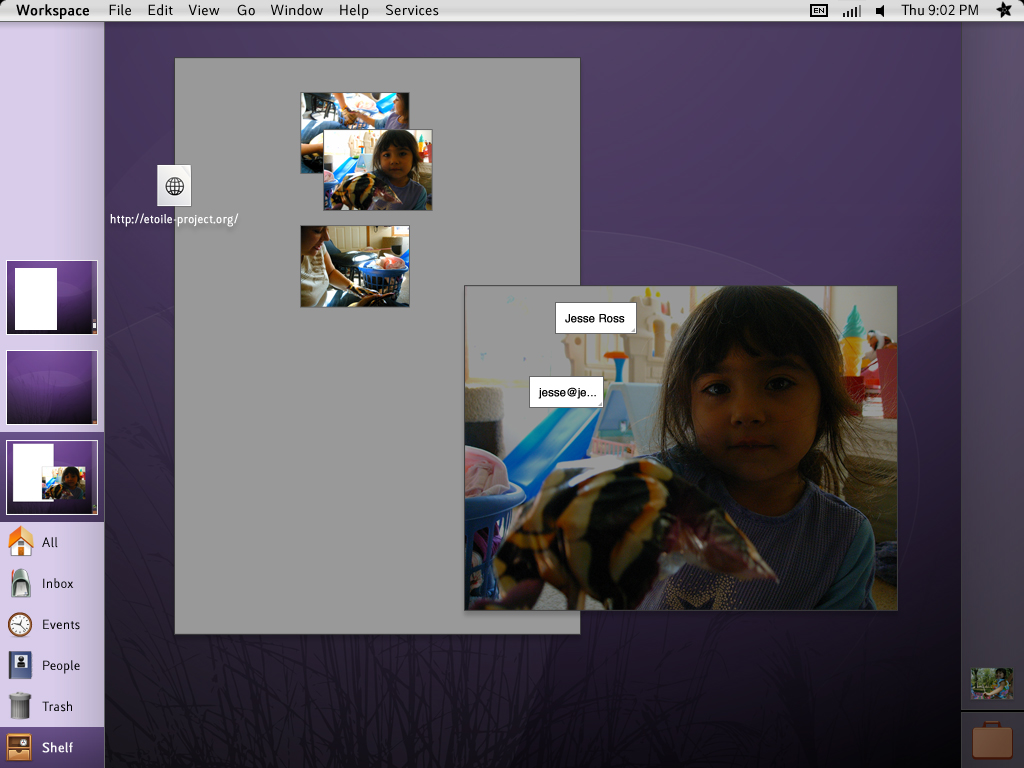
The user decides to grab the middle photo. Doing so resizes it to
actual size. The user then drags it back over the Shelf Tag Overlay
list item (or into the hot corner in this case) to bring it to the
current project.

------------------------------------------------------------------------
--

http://jesseross.com/clients/etoile/ui/concepts/02/workspace_750.jpg
http://jesseross.com/clients/etoile/ui/concepts/02/workspace_800.jpg

As soon as the hot corner is reached, the overlay is dismissed. The
user then drags the photo into position.

Alternately, to drag the item from the Shelf to the current project,
the user could have dragged the photo directly to the Project
representation in the sidebar, and dropped it there. This would work
for any Project, not just the currently viewable one.

------------------------------------------------------------------------
--

http://jesseross.com/clients/etoile/ui/concepts/02/workspace_850.jpg

Here the user triggers the Shelf Tag Overlay again, showing that the
photo that was grabbed still exists on the Shelf Overlay. If the user
wanted to now remove the item from the overlay, they could drag the
item from the Shelf onto the Trash Tag Overlay list item.

------------------------------------------------------------------------
--


Any comments or criticisms would be much appreciated.

Thanks!


J.


_______________________________________________
Etoile-discuss mailing list
[EMAIL PROTECTED]
https://mail.gna.org/listinfo/etoile-discuss